Bringing a stylized environment to life starts with building smart, modular assets. By using optimized trim sheets and unique textures, you can create worlds that look amazing while staying efficient and flexible.
In this post, I'll walk you through the steps I took to create a set of modular assets for a stylized environment, from gathering references to setting up the final scene. Along the way, I’ll share key lessons I've learned and things I wish I'd done differently, hoping to inspire you to level up your own modeling and texturing process.
I'll discuss the process in general, and there will be more posts related to this project that delve into each stage in greater detail.
You can download the final project in my store for Free :)
Gathering References
We all know reference gathering is essential for creating 3D models, it establishes a solid foundation for design.
I recommend getting at least this type of references (of course adapt this information to your project needs):
- Real Life: Real-life references provide a tangible basis for proportions and details.
- Concept: Helps to clarify the creative vision.
- Breakdown: Allow you to analyze successful designs and understand their structure, leading to better-informed decisions.
- Technical: This helps you stay mindful of the project's technical requirements, such as polycount, efficient texture usage, and how other artists have approached similar challenges.
- Target Style: Help you maintain consistency in aesthetics.
Where can I find good references? You can find references almost anywhere, consider platforms like Pinterest, ArtStation, as well as resources such as museums and books.
During this stage, it's crucial to identify the fundamental and core elements that will form part of your assets.

It doesn't need to be perfect, but ensure you understand the key elements that will be part of your scene and how they interact with one another.
Software used for this stage:

Early Blockout
In this stage i take one of the best real life references i had and drop it into "fSpy" to get the camera position and angle to "blender". (this stage is not always necessary but is a very good practice yo get all the proportions in place)

Ensure you gather real-life measurements before diving into fSpy. This will help you accurately set the "reference distance," allowing you to have your units configured properly when you move to Blender.
For instance, I determined that the height of the column is approximately 9 meters. I set the "reference distance" along the Z axis to 9 meters. Then, simply adjust the blue line of the Z axis to align with your reference by dragging it to the desired start and end points.
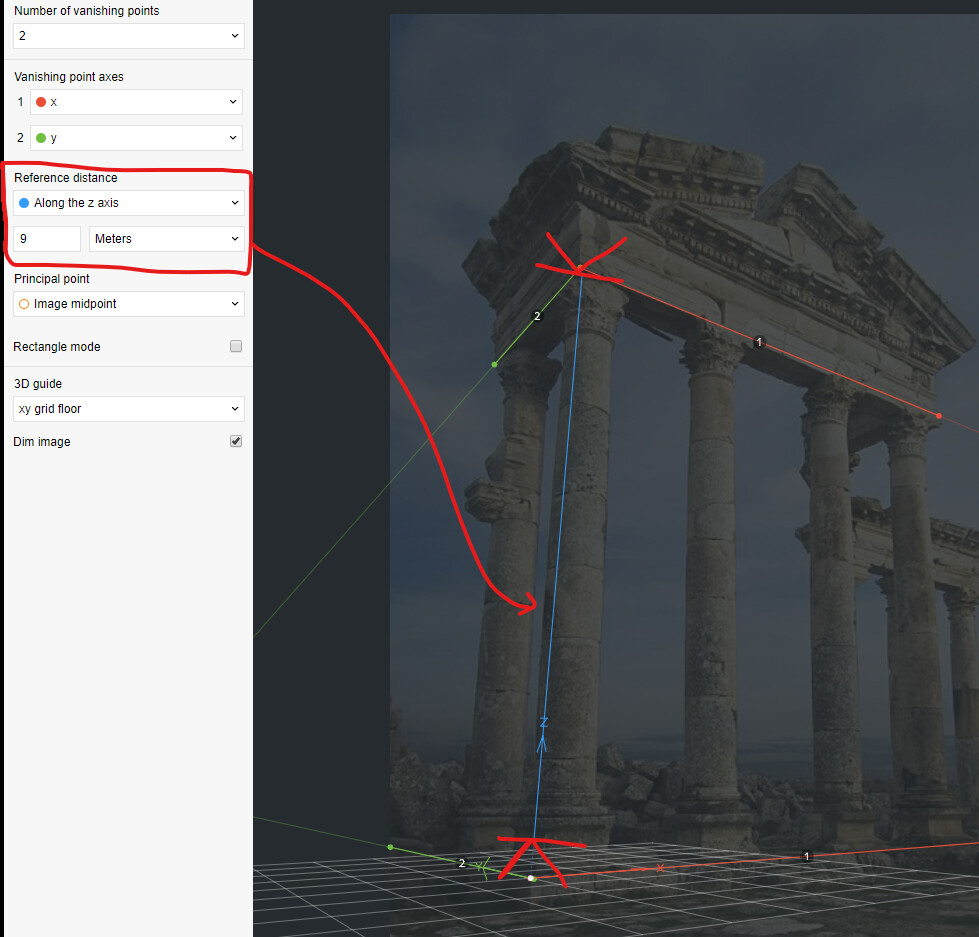
In order to import this camera information into blender you can use the addon that fSpy provides.
After setting up the camera and gathering my references, I created an initial blockout of the scene. At this stage, I avoided focusing on details like broken pieces, small rocks, or destruction variants. Here’s the result:

On the right, you can see the reference overlaid on my geometry. On the left, it might seem like I focused heavily on small details, but I actually spent very little time modeling those pieces. Always remember to use modifiers like "array," "mirror," and "screw," along with instanced objects, to speed up the process.
Don’t worry about modeling your reference perfectly; the goal isn’t to recreate a single scene but to craft modular pieces that can be used to build a variety of different environments.
A great way to manage the level of detail needed at this stage is by using a "flat" shader, which allows you to focus solely on the silhouette.

In most cases, if the part you're working on doesn't contribute to the silhouette, it's not worth focusing on at this stage.
Texel Blockout
In this stage, we'll take the pieces we've created and begin laying out basic UVs, considering the target texel density and estimating how many textures we'll need. You can get a sense of the required textures during reference gathering by factoring in the size of each piece. While this takes practice, it's a valuable part of the process I call "Texel Blockout."
For instance, in this specific project, based on my references and the desired resolution for the final product, I anticipate needing approximately 3 to 4 textures organized as follows:

I understand this stage adds complexity early in the process, but I've found it significantly reduces the time spent revisiting sculpting or texturing later on, as it helps me identify areas that need higher/lower resolution from the start.

I realize that not all parts in an environment need to have the same texel density. However, since this is an early stage and the geometry is relatively simple to unwrap, I prefer to keep the texel density uniform across all models. As the process progresses, I may reuse parts of the textures and models, which could lead to slight variations in texel density later on.
This early UV process also allows you to draft your textures and evaluate the scale of the details you'll be creating.

For example, I created this quick draft of a trim sheet that includes some elements my high poly model and final texture will feature. It doesn’t need to be perfect, but it helps give a clear idea of the necessary components and can even reveal opportunities to reuse geometry and optimize space.
Another practice I follow for modular pieces is to reuse resources as much as possible. For example, this capital is mirrored along two axes. While some might view this as leading to repetition, it’s important to remember that we won’t be adding intricate details to these models since they will likely be repeated multiple times within a scene. Additionally, as we’ll explore later in this project, there are various techniques we can use to minimize repetition.

Low to High
At this stage, I created a low-poly version, which I transferred to ZBrush to add all the high-poly details. These details will later be baked onto the final low-poly models or trim sheets.
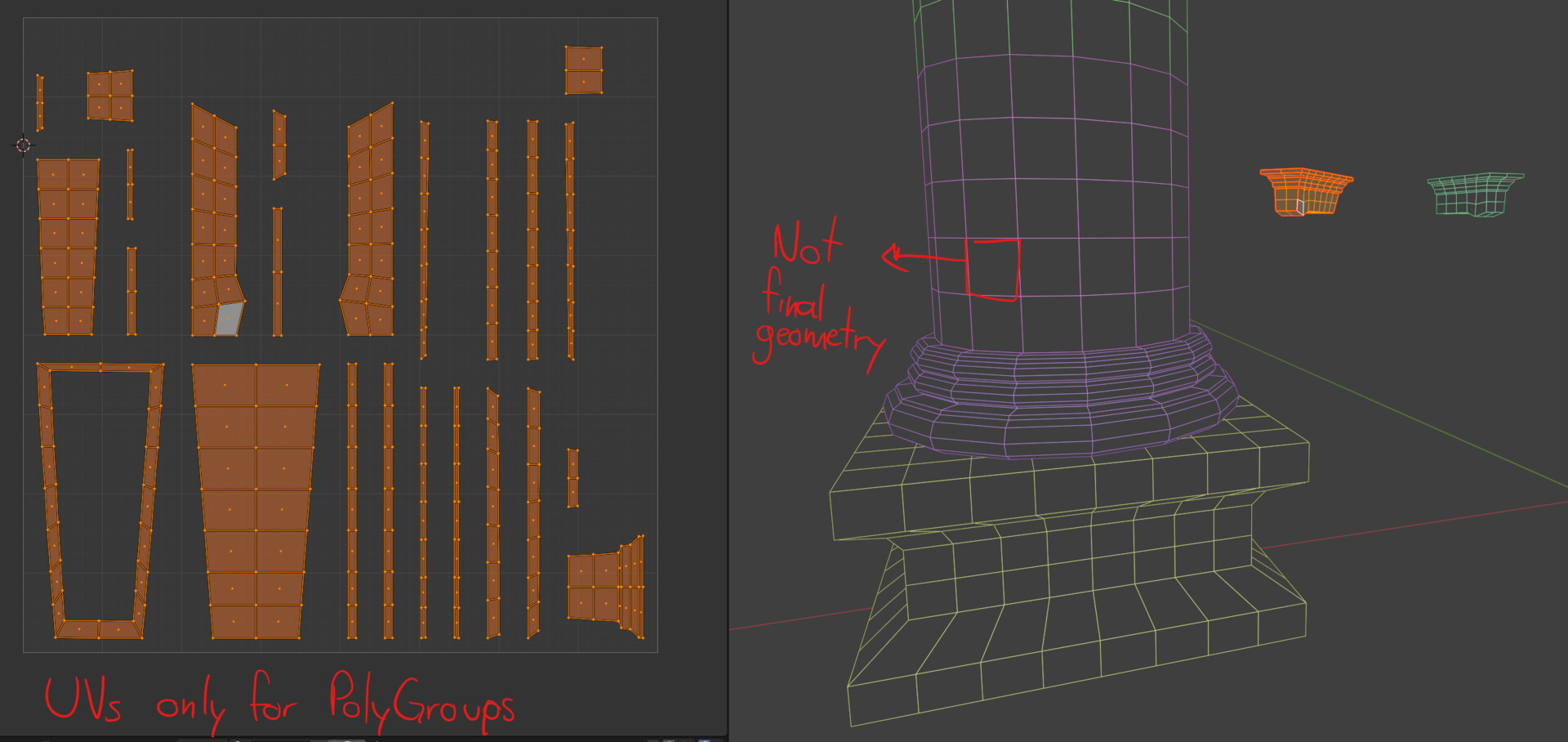
This low-poly version is a bit different from the final one, as it includes extra pieces needed for ZBrush. These pieces have different UVs and seams, which help create polygroups, making it easier to add creases and sharpen the high-poly model.
The models also have evenly spaced square divisions to maintain a consistent shape during subdivision and sculpting. While most of this could be done directly in ZBrush, I find I'm much faster using Blender, so I opted for this workflow to speed up the project.
High-Poly Sculpting
At this stage, I begin sculpting the details to achieve the desired style for my final pieces.

It’s crucial to keep in mind the scale of the pieces so the details are the right size. Also, consider the final texture resolution—it's easy to overdo it and add details that might create unnecessary noise in the final texture.
I had to constantly remind myself not to create overly large details that could make repetition obvious, especially since some pieces will be duplicated multiple times.
Make sure your details are subtle and appropriately sized, so they don't overpower the overall design. Everything should contribute to the story, avoid adding unnecessary details where they don’t belong.

For example, I knew this piece had symmetry on two axes, so I had to be mindful of avoiding large details that could make the repetition too obvious in the mirrored sections and when duplicated. Be sure to activate symmetry when sculpting to get a clear view of your final piece.
Also, keep in mind that when baking from high-poly to a very low-poly model, the sharpness of your details might get reduced. To compensate, make your details slightly larger if you know your final low-poly model will be extremely simplified.
A helpful practice in ZBrush is to use "Morph Target" and "Layers" to track different stages of your work. This can be particularly beneficial if you change your mind or plan to create different variants, significantly streamlining your workflow. Just keep in mind that using these tools requires maintaining a consistent geometry resolution, I’ve lost a lot of work because I didn’t do this!

Lowpoly for Baking
Now is time to create the final lowpoly version that will be used for baking and most likely to be shown in the final product.
For this process i get my highpoly pieces and bring them into a new Blender file (due to the size of the files) and my lowpoly that i used for either base for sculpting or as the texel density test.

Please note that the high-poly versions overlap the low-poly models, and the base of the column is more rounded than it should be in the final version. This adjustment helps prevent odd curves when baking. If you skip this step, you might encounter artifacts when baking a high-poly cylinder onto a very low-poly version.

When transitioning to Marmoset for baking, I prefer to group the modular pieces within the same bake project. You can easily do this by naming the meshes in Blender before exporting; just append "_high" or "_low" to each name, and Marmoset will handle the rest.
Also, remember to set the format to 16 bits per channel to ensure your position and normal maps are baked correctly. If you skip this step, it can complicate the use of smart masks in Substance Painter.

As a final step for this stage, import your baked "Ambient Occlusion" and "Normal" maps into Blender or any software you're using to verify that everything looks correct. You definitely don’t want to encounter any errors after you’ve finished your textures, trust me on this!

TrimSheet
The process to create the TrimSheet is very similar to the other ones but in this case you need to be extra careful about the details and the deformations that you make to the mesh while sculpting

Since you're not directly working on a model with the final shape, it’s easy to lose track of the scale of your details. I recommend frequently returning to your scene setup to see where those details will be placed, ensuring you know exactly how large to make them.
The setup in ZBrush is similar to any other sculpt, but keep in mind that we’ll be baking all these details into a flat plane. Additionally, make sure to rotate any pieces that have perpendicular faces to the top view by a few degrees so you can easily see them from above.

Remember, creating an effective TrimSheet relies more on the planning stage than on the sculpting stage, make sure you're making use of all the resources in the texture.
Texturing
Now it's time to import all your baked textures into Substance Painter.
To ensure that all my maps are baked correctly, I like to apply a couple of the smart materials that come with Substance. This helps me verify that everything is functioning as expected.

In this case i dropped the Sapphire material to the model. (only to make sure masks work, this is not the final product, always try to craft your textures by hand so they are exactly what you want/need)

My secret to creating great textures is to focus on the elements I want to highlight in the model while keeping my references close. This way, I can see how other artists have tackled similar challenges and find effective solutions.
Establishing Assets and Crafting Variants
In this stage i take all my final models and textures, so i can make use of the TrimSheets i created to make new models with the same resources i already have.
For example i can create even destroied variants by cutting my models and putting a part of the trimsheet that i designed to have destruction on it, this is where sometimes you can play with the texel density even if it is not perfect, just make sure it looks correctly when placed next to the rest of the assets.


This approach allows you to efficiently add more variants to your project without creating new textures or models. Just be mindful not to use all your materials on a single asset, as this could unnecessarily increase GPU memory usage. Remember, the goal is to optimize resources.
Preparing Assets for the Level Design Team
When delivering the pack to a third party, it’s essential to ensure that it contains well-crafted sets for easy drag-and-drop functionality. Take some time to organize your modules within a reasonable-sized grid and prepare a few variants for immediate use. Consider building a couple of sets based on your references and project requirements to streamline the workflow.


Thanks!
Thank you for taking the time to read through my process of Crafting Modular Assets. I hope you found the steps and insights shared in this post helpful as you embark on your own modeling and texturing journey. Remember, building smart assets and leveraging resources efficiently can significantly enhance your workflow and creativity.
If you enjoyed this post, please consider sharing it with the community. Your support helps foster a collaborative environment where we can all learn and grow together as artists. Stay tuned for more posts where I'll dive deeper into each stage of this project!
You can access all the resources for this project for free on my profile, allowing you to explore and study them at your convenience.